Wednesday, September 17, 2014

ASP.NET 4 MVC 4: How Controllers Work

ASPNET 4 MVC 4 How Controllers Work

Professional ASP.NET MVC 4 (111834846X) cover image

This tutorial is based on “Chapter 2 Controls” of the book

Professional ASP.NET MVC 4

Jon Galloway, Phil Haack, Brad Wilson, K. Scott Allen, Scott Hanselman
ISBN: 978-1-118-34846-8
Paperback
504 pages
October 2012

STEPS

1) Edit HomeController.cs

2) Observe the output

Stop the project execution.

3) Add New Controller

3-1) In Solution Explorer, right-click Controllers item, select Add/Controller…
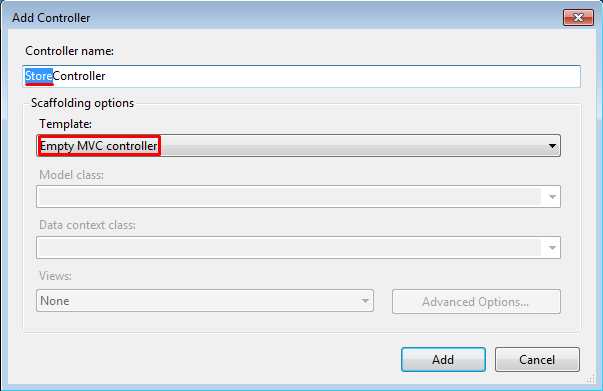
3-2) Specify Controller Name and Template.
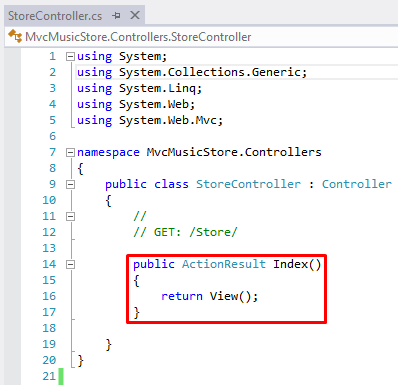
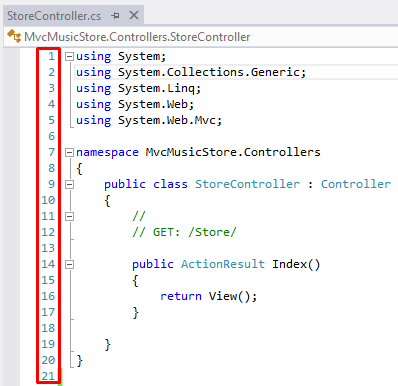
3-3) New controller, StoreController.cs, has been created with basic codes.
Notice line no. 14-17.

4) Edit New Controller

4-1) Replace the codes above with the following codes.
        public string Index()
        {
            return "Hello from Store.Index()";
        }
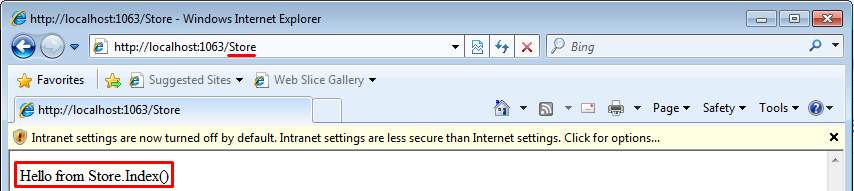
4-2) Outcome
4-3) Insert some codes on the next line
        //
        // GET: /Store/Browse
        public string Browse()
        {
            return "Hello from Store.Browse()";
        }
        //
        // GET: /Store/Details
        public string Details()
        {
            return "Hello from Store.Details()";
        }

5) Adding Parameters

5-1) Using Query String Value.
Replace the Browse method (in Step 4-3)
        //
        // GET: /Store/Browse?genre=Disco
        public string Browse(string genre)
        {
            string message =
            HttpUtility.HtmlEncode("Store.Browse, Genre = " + genre);
            return message;
        }
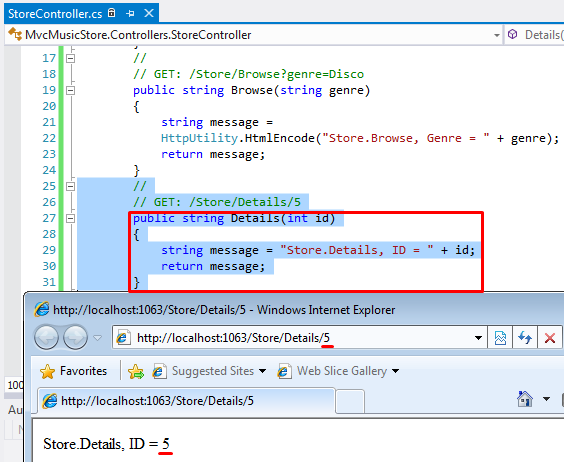
5-2) Using ID Value
//
// GET: /Store/Details/5
public string Details(int id)
{
string message = "Store.Details, ID = " + id;
return message;
}

Visual Studio 2012 Display Line Numbers In Text Editor Window

---
Visual Studio Display Line Numbers In Text Editor Window

STEPS

1) Go to Menu Bar. Select Tools/Options...

2) Outcome

---

---

Visual Studio ASP.NET Deleting A Solution

---
Visual Studio ASP.NET Deleting A Solution
1) Go to Solution Explorer. Select Solution Name.
2) Go to Menu Bar. Select Edit/Delete.

---


Visual Studio 2012 ASPNET 4 MVC 4 Creating A Project

---
ASPNET 4 MVC 4 Creating A Project

Professional ASP.NET MVC 4 (111834846X) cover image

This tutorial is based on “Chapter 1 Getting Started” of the book

Professional ASP.NET MVC 4

Jon Galloway, Phil Haack, Brad Wilson, K. Scott Allen, Scott Hanselman
ISBN: 978-1-118-34846-8
Paperback
504 pages
October 2012
STEPS
1) Start Visual Studio 2012
2) Create A New Project
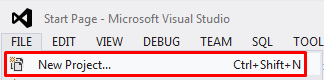
2-1) Go to Menu Bar. Select File/New Project…
2-2) Define Project Settings
2-3) Project Template Options.
2-4) Core MVC components
3) Run Project
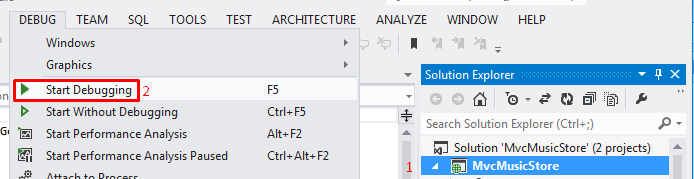
3-1) Select Solution Name in Solution Explorer, then select Debug/Start Debugging in Menu Bar.
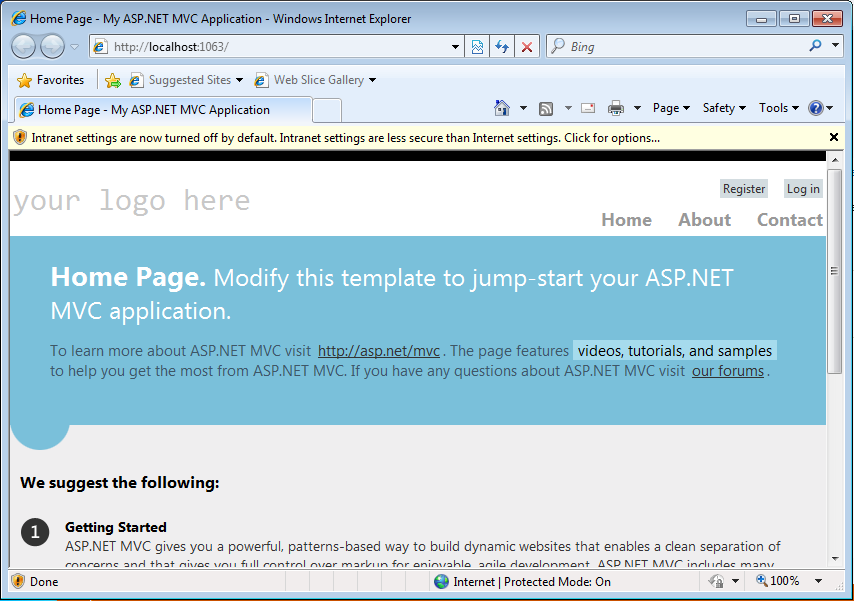
3-2) Browse Project Web Site

STEPS

1) Start Visual Studio 2012

2) Create A New Project

2-1) Go to Menu Bar. Select File/New Project…

2-2) Define Project Settings

2-3) Project Template Options.

2-4) Core MVC components

3) Run Project

3-1) Select Solution Name in Solution Explorer, then select Debug/Start Debugging in Menu Bar.

3-2) Browse Project Web Site

---

Sunday, September 14, 2014

VISUAL STUDIO ULTIMATE 2012 Getting Started

---
VISUAL STUDIO ULTIMATE 2012 Getting Started

STEPS

1) Run Visual Studio

2) Select Default Environment Settings.

Wait for the process to finish.
Main Application Windows.

3) Create Windows Form Application project.

4) Create ASP.NET Empty Web Site

Close your solution.
Close Visual Studio 2012.
---

Friday, August 1, 2014

GETTING STARTED WITH WINDOWS STORE APPS

---
GETTING STARTED WITH WINDOWS STORE APPS

INTRODUCTION

A Store app is a new type of app that you can write in a variety of languages, such as C# or C++ with XAML, C++ with DirectX, and JavaScript with HTML/CSS. Now you can easily create apps for Windows devices and Windows Phone from a single project.

STEPS

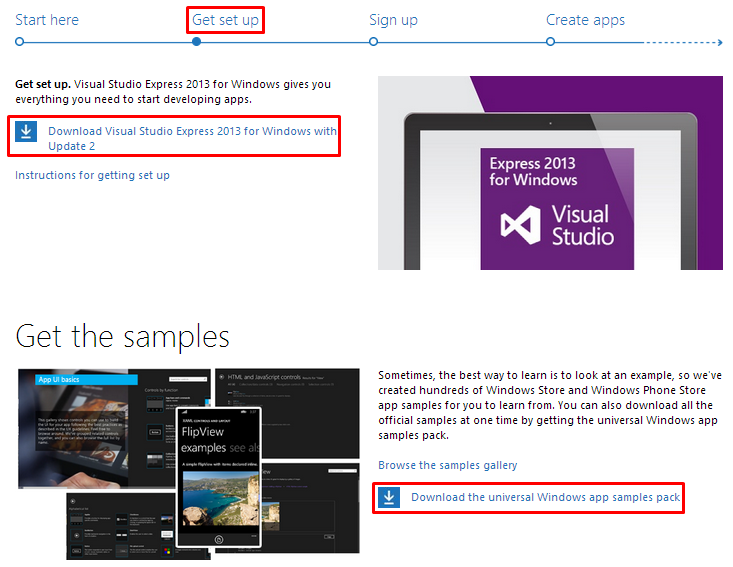
1) Browse start page, http://dev.windows.com/en-us/getstarted 

  1. Getting Started

2) Download Setup and Sample files

2.1) Click the download link for Visual Studio Express 2013 for Windows with Update 2.
2.2) Click the download link for universal Windows app samples pack.
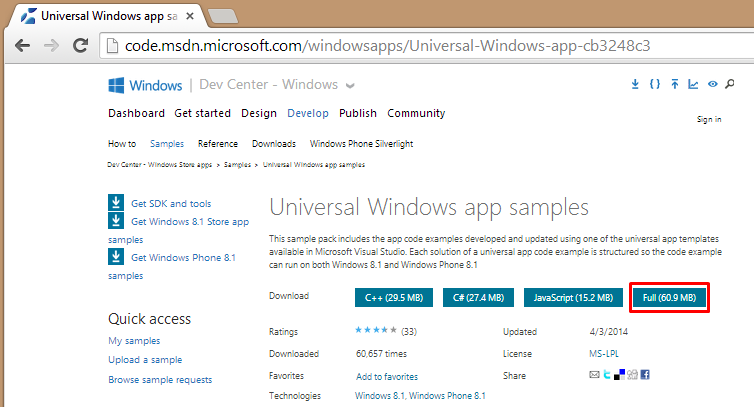
2.3) Download options for samples pack
Select Full option for a comprehensive collection of samples.
Explanation:
This sample pack includes the app code examples developed and updated using one of the universal app templates available in Microsoft Visual Studio. Each solution of a universal app code example is structured so the code example can run on both Windows 8.1 and Windows Phone 8.1. The sample pack provides a convenient way to download all the samples at once. The samples in this sample pack are available in C#, C++, and JavaScript.
This sample pack includes all the app code examples developed and updated using one of the universal app templates available in Visual Studio. Each solution of a universal app code example is structured so the code example can run on both Windows 8.1 and Windows Phone 8.1. For more info about how to build apps that target Windows and Windows Phone with Visual Studio, see Build apps that target Windows and Windows Phone 8.1 by using Visual Studio. The sample pack provides a convenient way to download all the samples at once. The samples in this sample pack are available in C#, C++, and JavaScript. The Windows Platform Samples Gallery contains a variety of code samples that exercise the various new programming models, platforms, features, and components available in Windows 8.1 and Windows Phone 8.1. These downloadable samples are provided as compressed ZIP files that contain a Microsoft Visual Studio solution (SLN) file for the sample, along with the source files, assets, resources, and metadata necessary to successfully compile and run the sample.
Note  These samples require Windows 8.1 and Microsoft Visual Studio 2013 with Microsoft Visual Studio 2013 Update 2 or later. They don't compile in Microsoft Visual Studio 2012 for Windows 8.
To obtain an evaluation copy of Windows 8.1, go to Windows 8.1.
To obtain an evaluation copy of Visual Studio 2013, go to Visual Studio 2013. After you install Visual Studio 2013, update your installation with Visual Studio 2013 Update 2 or later.
For more info about the programming models, platforms, languages, and APIs demonstrated in this sample, please refer to the guidance, tutorials, and reference topics provided in the Windows 8.1 and Windows Phone 8.1 documentation available in the Windows Developer Center. This sample is provided as-is in order to indicate or demonstrate the functionality of the programming models and feature APIs for Windows 8.1 and Windows Phone 8.1.
This pack may be very large and take some time to download.
Operating system requirements
Client        
  • Windows 8.1
Server        
  • Windows Server 2012 R2
Phone        
  • Windows Phone 8.1
Alternatively, you may download sample pack from here.
---

---